When Azure resources misbehave, GitHub Copilot can help find the root cause and propose fixes, provided it has access to those resources. An easy way to achieve this is to run the Copilot CLI directly in Azure Cloud Shell, where the Azure CLI and user credentials are already available.
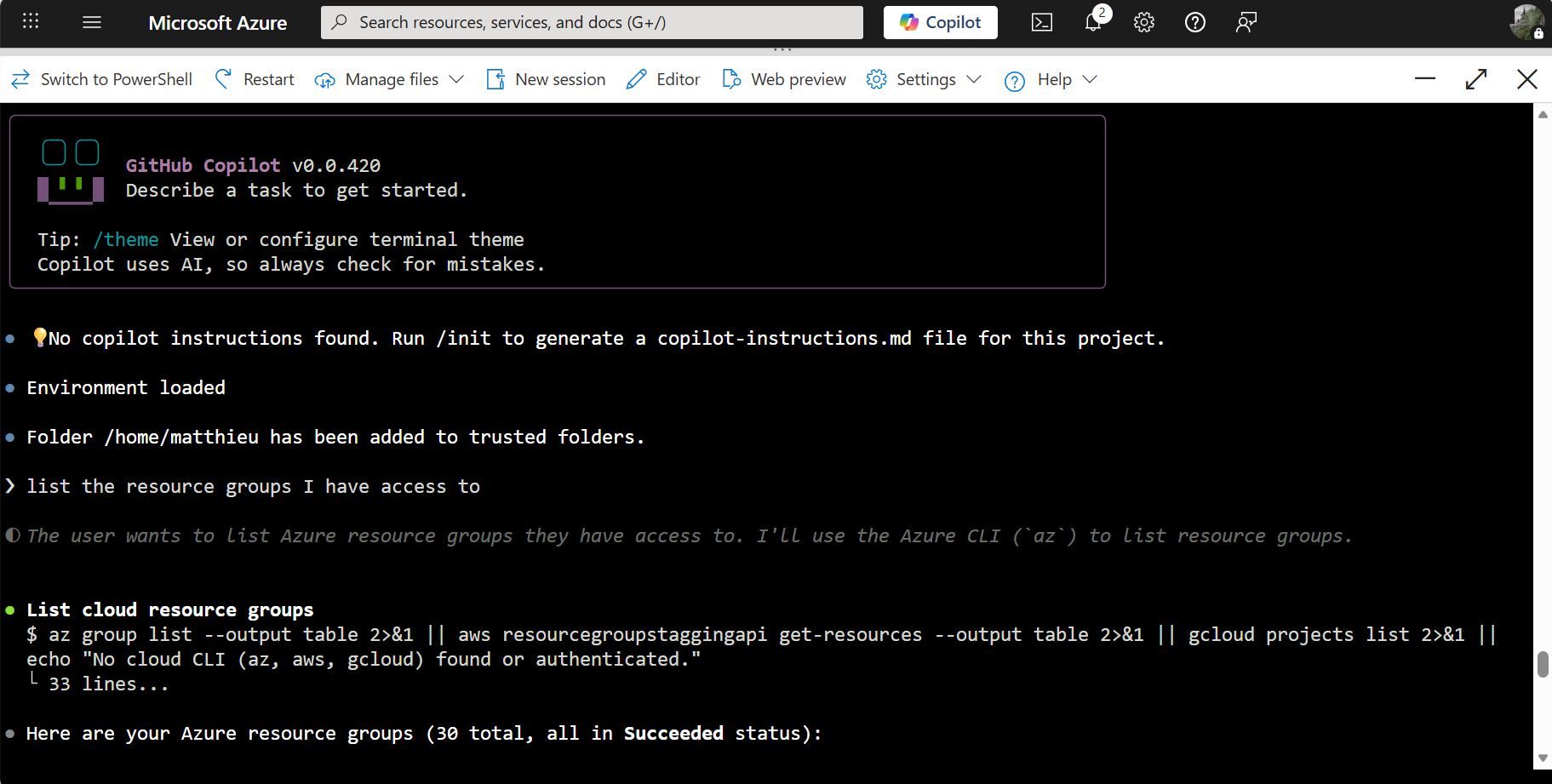
This post covers the setup steps and a couple of approaches to manage Copilot’s Azure permissions.
Setup
Open a Bash session in Azure Cloud Shell.
Install the Copilot CLI:
curl -fsSL https://gh.io/copilot-install | bashLog in with GitHub:
copilot loginStart an interactive Copilot session:
copilotFrom there, ask Copilot to assess the situation. It can invoke Azure CLI commands, query resource states, and suggest remediation steps.
Sandboxing
In this setup, Copilot runs under the user’s identity. It can perform any action the user can perform, including resource deletion, which may not be desired.
One approach is to use Privileged Identity Management (PIM) to limit the blast radius. Access Azure under a low-permission role like Reader for the Copilot session, and perform just-in-time elevations to broader roles only when needed.
An alternative is to run Copilot in a container with its own Managed Identity, using for instance Azure Container Instances. Copilot’s identity is then separate from the user’s identity and starts with no access to Azure resources. Permissions are granted explicitly via RBAC, keeping full control over what Copilot can and cannot do.